MEPCO Online Bill Check 2026 – View and Download Duplicate Bill
The MEPCO Online Bill Check service helps electricity consumers view their monthly electricity bills without waiting for a printed copy. If your bill has not arrived, you have misplaced it, or you need another copy for payment, you can use an online bill-checking service to retrieve the available bill details.
MEPCO stands for Multan Electric Power Company, which distributes electricity to consumers across Multan and several surrounding areas in southern Punjab, Pakistan. By checking your bill online, you can review the payable amount, due date, reference number, and other billing information before making a payment.
In this guide, you will learn how to check your MEPCO electricity bill, download a duplicate copy, find your reference number, print your bill, and troubleshoot common problems.
How to Complete MEPCO Online Bill Check in 2026
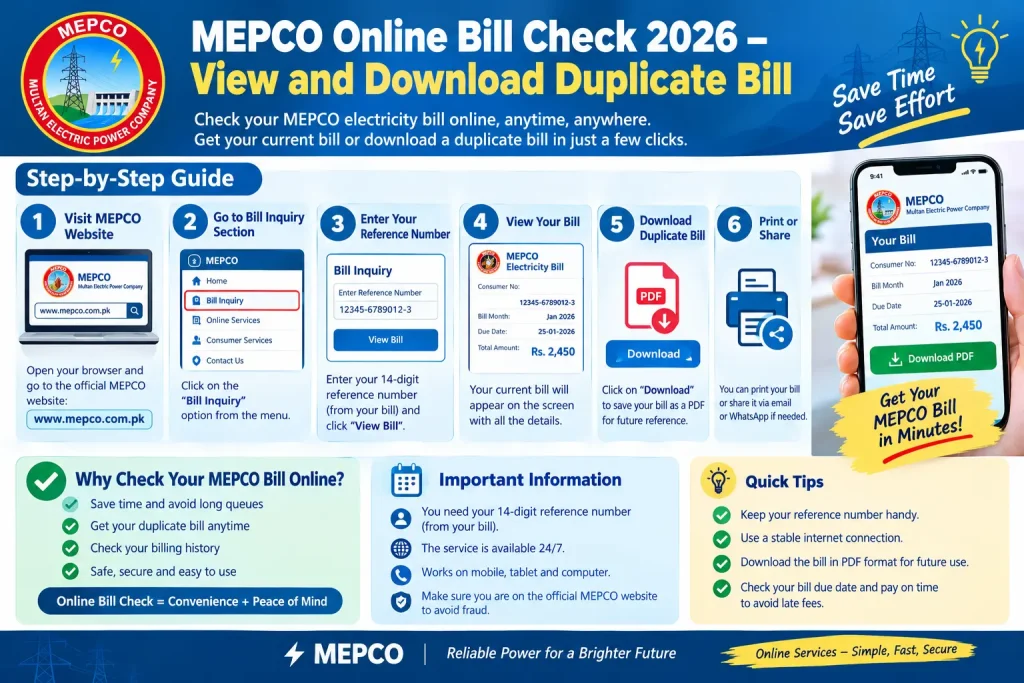
You can view your MEPCO bill online using the reference number printed on a previous electricity bill. Follow these steps to retrieve your bill.
Step 1: Open the MEPCO Bill Checking Website
Visit the authorised online bill service:
Check MEPCO Bill Online – PITC
PITC provides an online bill facility for participating electricity distribution companies, including MEPCO. Make sure you use a trusted website when entering your billing information.
Step 2: Find Your Reference Number
Locate your 14-digit reference number on a previous MEPCO electricity bill. It is usually printed near the consumer and billing information.
Enter the reference number exactly as shown on the bill. Avoid confusing it with the meter number or Customer ID, as these identifiers may serve different purposes.
Step 3: Enter the Required Information
Follow the instructions displayed on the bill-checking website. Enter the reference number or other requested information in the appropriate field.
Check the digits carefully before submitting the form. An incorrect number may prevent the system from retrieving your bill.
Step 4: View Your Electricity Bill
Submit your information and open the bill if it is available. Review the displayed billing details, including the billing month, payable amount, issue date, due date, and units consumed.
The information shown depends on the bill record available through the service.
Step 5: Download the Duplicate Bill
If the website displays a downloadable or printable bill, use the available download or print option. You may be able to save a copy as a PDF using your browser’s print function.
Keep the downloaded file in a folder where you can find it easily when you need to check your payment deadline.
Step 6: Print Your MEPCO Bill
Open the downloaded PDF or use the website’s print option. Select your printer, check the page layout, and print the bill.
If you do not have a printer at home, save the PDF and take it to a printing shop.
Step 7: Check the Due Date and Payable Amount
Before paying, verify the bill amount and due date. If the bill includes arrears, adjustments, or a late-payment surcharge, review those details too.
Use a payment channel supported by MEPCO or the relevant authorised service, and save the transaction receipt after payment.
What Is a MEPCO Duplicate Bill?
A MEPCO duplicate bill is another copy of your electricity bill. It contains billing information that helps you understand the amount payable and the period covered by the bill.
A duplicate copy is useful if:
- Your printed electricity bill has not arrived.
- You have lost or misplaced the original bill.
- You need to check the due date before making a payment.
- You want to review your electricity consumption.
- You need a copy for your personal records.
An online copy is generally intended to help you access the available billing details. If a particular bill is missing from the online service, contact MEPCO or use the relevant official support channel.
How to Download a MEPCO Duplicate Bill on Mobile
You do not necessarily need a computer to check your electricity bill. A smartphone with an internet connection can be enough.
Follow these steps:
- Open your mobile browser.
- Visit the PITC MEPCO bill portal.
- Enter the required reference number.
- View the available bill.
- Tap the download option if provided, or select your browser’s print function.
- Choose Save as PDF if that option is available.
- Save the file to your phone’s Downloads folder or another accessible location.
On Android, the PDF may appear in the Downloads folder or your browser’s download list. On an iPhone, you may be able to save the document to the Files app.
Menu names can vary by browser and device, so follow the options available on your screen.
Where to Find Your MEPCO Reference Number
Your reference number is one of the most important details required for online bill checking.
You can usually find it on a previous printed MEPCO bill, near the upper portion of the document or within the customer and billing details section.
Keep these points in mind:
- Enter all 14 digits correctly.
- Do not substitute the meter number for the reference number.
- Use a previous bill for the same electricity connection.
- Keep a secure copy of the number for future bill checks.
If you cannot find your previous bill, contact MEPCO through its official customer service channels to ask how to retrieve your account details.
What Information Does a MEPCO Bill Contain?
When you open your bill online, several details can help you understand your electricity charges.
| Bill detail | What it means |
|---|---|
| Reference Number | Identifier used to retrieve the electricity bill |
| Consumer Information | Details associated with the electricity connection |
| Billing Month | Period or month associated with the bill |
| Previous Reading | Meter reading recorded during the previous cycle |
| Present Reading | Latest meter reading recorded for billing |
| Units Consumed | Electricity usage calculated from the readings |
| Issue Date | Date the bill was issued |
| Due Date | Payment deadline shown on the bill |
| Payable Amount | Amount due under the stated payment terms |
Reviewing these fields can help you identify an unexpected increase in units or understand why your bill amount has changed.
Why Is My MEPCO Bill Not Showing Online?
Sometimes a bill cannot be retrieved even when you enter the correct information. The problem may be temporary or related to the account details.
Here are some common causes and possible solutions.
Incorrect Reference Number
A missing digit or typing error may prevent the system from finding your bill. Compare the number you entered with the reference number on your previous bill.
Latest Bill Is Not Available Yet
The newest bill may not appear immediately when you expect it. Check again later and contact MEPCO if the bill remains unavailable.
Temporary Website Problem
The online service may be temporarily unavailable because of maintenance or a technical issue. Try again later or use another trusted browser.
Internet Connection Problem
A slow or unstable internet connection may stop the page from loading. Check your connection and refresh the page.
Wrong Electricity Company Selected
Make sure you are checking a MEPCO bill rather than a bill issued by another electricity distribution company. Different companies use separate billing services.
If none of these solutions works, contact MEPCO through an official channel and provide the necessary account information securely.
How to Pay Your MEPCO Electricity Bill Online
After checking your bill, you can choose a payment method supported by the relevant service.
Depending on availability, options may include:
- Mobile banking applications
- Digital wallets
- Online banking
- ATMs
- Banks and authorised payment outlets
The available options and processing times may vary. Before confirming a digital payment, verify the biller, account information, and payable amount.
After completing the transaction, save the receipt or transaction ID. If money is deducted but the bill continues to appear unpaid, check the transaction status before attempting another payment.
Frequently Asked Questions
1. How can I check my MEPCO bill online in 2026?
Visit the authorised PITC MEPCO bill portal, enter the required reference number, and view the available bill details.
2. Can I download a MEPCO duplicate bill for free?
You can use the online bill service to view your available bill. If a download or print option is provided, you can generally save a copy without paying a separate printing fee online. Check the service’s current terms.
3. Can I check my MEPCO bill without a reference number?
The standard online bill-checking process commonly requires the reference number. If you do not have it, look for a previous bill or contact MEPCO to retrieve the correct account information.
4. Can I check my MEPCO bill on my mobile phone?
Yes. You can open the bill portal in a mobile browser and save the available bill as a PDF if the service or browser supports it.
5. Why is my latest MEPCO bill not available online?
The bill may not have been uploaded yet, the website may be experiencing a temporary issue, or the reference number may be incorrect. Verify your details and try again later.
6. How can I check my MEPCO bill due date?
Open your available bill and look for the due-date field. Check the printed date carefully to avoid late payment.
7. Is an online duplicate bill useful for payment?
An online copy can help you review your bill details. Follow the payment instructions provided by the authorised payment service, and keep your transaction receipt as proof.
Conclusion
The MEPCO Online Bill Check facility makes it easier to view your electricity bill, retrieve a duplicate copy, check the due date, and keep your billing information organised. By using the authorised bill portal and entering the correct reference number, you can access the available bill details without waiting for a printed copy.
If your bill does not appear online, verify your reference number, try again later, and contact MEPCO if the issue continues. Always confirm the payable amount before making a payment and save your receipt for future reference.
Official bill portal: https://bill.pitc.com.pk/mepcobill